
I'm not sure if it's because I really love this operating system too much or rather because I simply don't like Windows at all and what it has become.
The last time I used Windows was when 7 was still the go-to. Windows 8, 10, and 11 didn't really catch my interest...
For me, it's crucial that the operating system works for me, not me for it.
Also, I've never felt the need to have a Nintendo Switch, PlayStation Portable (PSP), and so on.
Even console options like PlayStation and Xbox never appealed to me; my PC has always been enough.
So, here's the deal. Why am I telling you all this and what does it have to do with the Steam Deck?
Well, the operating system that comes with the Steam Deck is actually Linux, more specifically - Arch.
That caught my eye immediately.
Before I decided to get this 'console', I did a lot of research on it, watched plenty of video reviews.
What really tipped the scales for me to go ahead and grab the Steam Deck was the fact that, besides the Gaming (Steam) mode, it also has a Desktop one.
Nintendo, Sony, and Microsoft consoles come with a specific interface. It's quite limited in terms of what you can do.
Basically, you have access to their store where you can buy games and maybe a few built-in apps like YouTube for watching videos.
But ultimately, they remain gaming consoles strictly used for that purpose.
What sets the Steam Deck apart from them is precisely this Desktop mode.
The Steam Deck is practically a computer. It's more akin to a laptop than a console, which is why I used the term "console" in quotes earlier.
The difference between it and a laptop is that it's more compact and comes with a built-in gamepad.
With the Steam Deck, you can also purchase a docking station. This allows you to connect a monitor, mouse, keyboard, and any other USB devices, effectively turning it into a fully functional desktop computer where you can have fun or get some work done.
Now, let's take a closer look at each mode separately:
Gaming mode
In this mode, the interface gets remarkably close to that of its competitors.
You can browse through the Steam store, purchase games, and then simply click the "Play" button to start and play them.
One thing I particularly like is that Valve has also thought about people who want a bit more control over their configurations.
You can pull up stats showing your FPS, processor load divided by cores, temperatures, and other useful information.
And if maximizing FPS isn't your top priority, you can even limit it, potentially extending battery life.
You even have the option to choose how many Watts your Steam Deck uses.
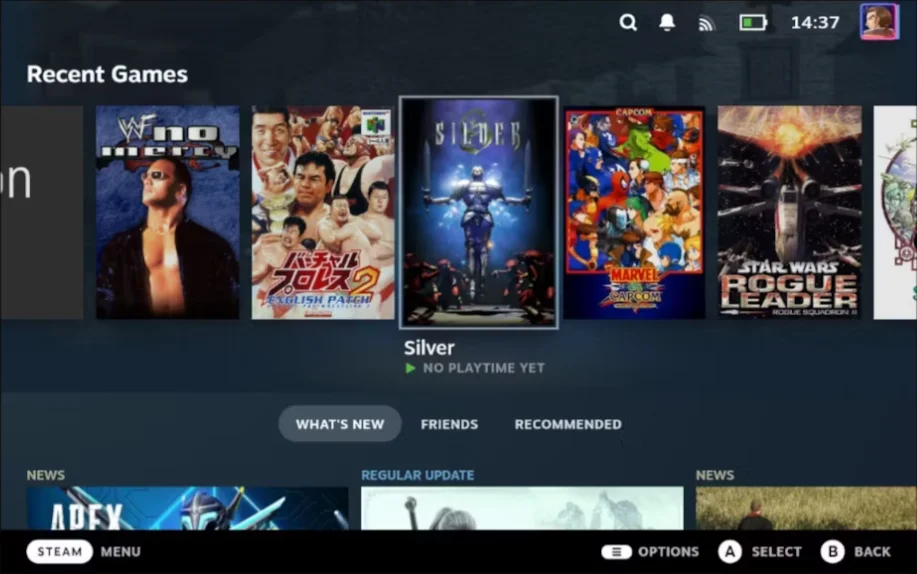
Overall, there's not much more to add about the said mode.
Ultimately, its aim is precisely that: to be easy and intuitive to use, so that even individuals who aren't particularly tech-savvy can navigate it without any trouble.
For that, let's also look at its:
Desktop mode
I've mentioned before that the Desktop mode is essentially a full-fledged operating system where you can do everything you would on a laptop or desktop computer.
The Steam Deck comes with a SteamOS distribution, which in turn is based on Arch Linux.
If you've ever used Linux, especially an Arch-based distribution, you'll feel right at home.
While you can play games available to you in this mode, for maximum performance, Valve recommends using the other mode.
In this mode, you can make finer adjustments and optimizations for the gaming one, even customizing the interface to your liking.
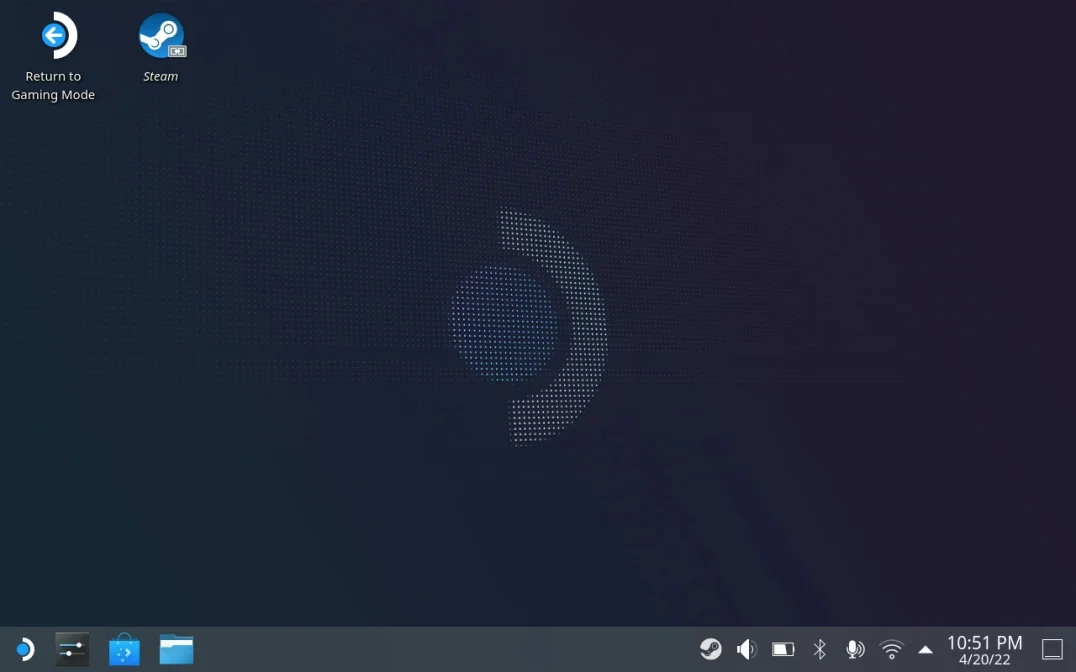
In conclusion, what I liked most about the Steam Deck is its freedom. Valve hasn't made any attempt to restrict its users in any way.
This allows the device to be used both by people who simply want to press a button and dive into their favorite game, as well as by those who want "something more."
Let's talk a little about the hardware
When I ordered my Steam Deck, there were three main versions available.
The differences between them were:
- the cheapest one came with a 64GB eMMC SSD.
- the middle one had a 256GB NVMe SSD.
- the most expensive option offered a 512GB NVMe SSD plus a display with high-quality anti-glare engraved glass.
After doing some research, I realized that the anti-glare glass didn't really justify the higher cost.
I mean, I couldn't see myself gaming outdoors under the sun anyway.
Most people recommended the middle option because of the extra storage space, but mainly because the memory wasn't eMMC, it was NVMe, which theoretically is faster and higher quality.
I ended up going for the cheapest option. The main difference is mostly in the game loading speed, which, according to tests, is insignificantly small. I also bought an additional 512GB MicroSD card to store all my games.
Plus, I didn't get it with the intention of playing AAA titles, but rather some platformers and indie games.
In my opinion, the device doesn't have enough power to comfortably handle heavy titles.
For me, 20-30 frames per second are just not enough. I'm used to playing on a 144Hz monitor, and those 30 frames look like a slideshow to me.
You might say that on this small display, the frame rate doesn't matter that much, to some extent that's true, but why would you even want to play Hogwarts Legacy on a 7-inch display!?
Display
These days, there are already OLED versions available, which undoubtedly deliver an incredible picture, but unfortunately, I haven't had the chance to experience them firsthand.
You have the option to swap out the display for one with a higher resolution than the standard (1280x800).
Personally, I wouldn't recommend doing so. The default resolution has been carefully selected by the Valve team to ensure you can play games comfortably and smoothly, and on this small screen, it seems meaningless.
The rule here is: higher resolution = lower performance. If an AAA game can barely manage 20-30 frames at this resolution, how much would it struggle at FullHD?
Battery
This might be its biggest drawback. The battery (40Whr) doesn't last long, especially if you're playing heavier games.
When playing a demanding title, expect no more than 2 hours of gameplay; however, with some indie games and platformers, it could last up to 8 hours.
On the other hand, the build quality of the device itself is very high. It feels premium and comfortable in the hands.
It weighs just 640g, which is significantly more than its biggest competitor, the Nintendo Switch, which weighs only around 400g (including the controllers).
Now, a little backstory
We've already mentioned that the Steam Deck runs on the Linux operating system. Some of you might be wondering what games actually work on this device.
Back in late 2018 (about 3 years before the Steam Deck's appearance), Valve announced Proton.
Proton is a tool based on Wine, which includes a set of additional libraries that, in simple terms, allow games made for Windows to run in a Linux environment.
I won't delve into the details of what Wine, Proton, DXVK, VK3D3, etc., are, as the topic is quite extensive. What's important here is that Valve invested quite a bit of money into the development of Proton.
Nowadays, the majority of Windows games (almost all, in fact, except those with aggressive anti-cheat measures) work perfectly fine on Linux thanks to the aforementioned tools.
There's also an indicator in the Steam store that shows whether a particular game works on Linux/Steam Deck and how well it performs.
Additionally, there's a website where users can leave comments and ratings for a given game.
Very often, games marked as not working on Steam actually work without any issues according to ProtonDB. The discrepancy arises because in one case, they're tested by a small number of people from Valve's team, and in the other, by all Steam Deck users, as well as the Linux community at large.
So, dear readers, here's my humble review of the Steam Deck.
Is the device worth it? Definitely. Is it worth you getting one? Well, it depends. It depends on how much you'll use it. Do you travel a lot? Do you have extra cash to spare? Because ultimately, it's not something you must have, but rather a bit of indulgence, a luxury.
Steam Deck
console
Steam
Valve
handheld
Comments
Leave a comment